
Connecting your AI assistant takes a few minutes. You paste the connector address into Claude or ChatGPT and approve the connection from the facturillo app on your phone. It is a read-only connection.
Before you start
- check_circleHave the facturillo app installed and signed in on your phone.
- check_circleA Claude or ChatGPT account.
- check_circleAny account can connect. Querying your data needs an active paid plan (or being a member of a family plan).
Copy the connector address
Both assistants connect with the same address. Copy it, you will paste it in the next step:
https://mcp.facturillo.com/mcpAdd the connector in your assistant
In Claude: open claude.ai and sign in. Go to Settings › Connectors and choose Add custom connector. Paste the connector address and confirm.
In ChatGPT: open chatgpt.com and sign in. Go to Settings › Plugins and use the + button to add a custom plugin. Paste the connector address and save.
ChatGPT custom plugins depend on your plan. On some plans you first need to turn on developer mode in Settings.
Approve the connection from the app
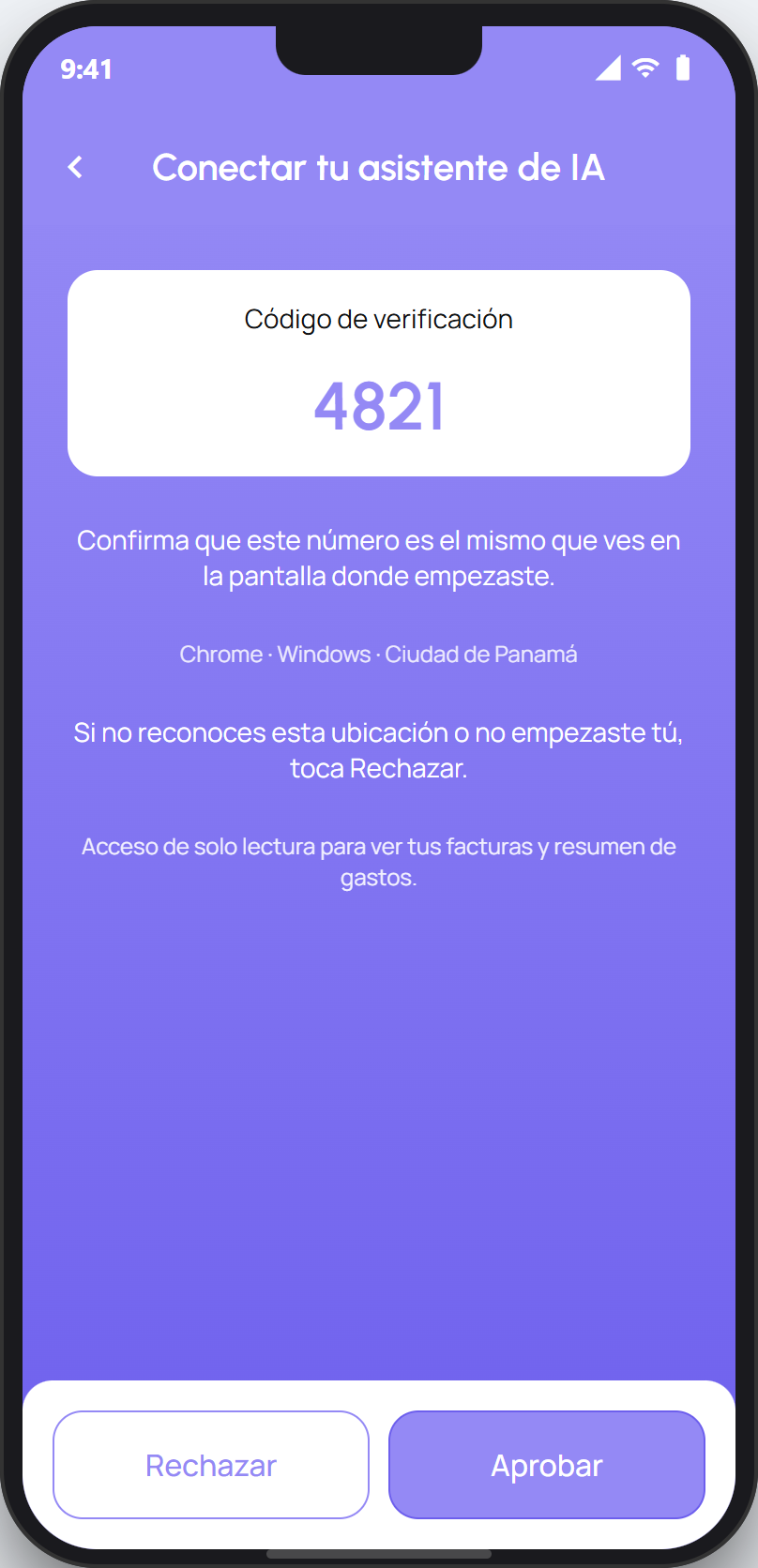
facturillo does not use passwords on the web: your phone is the key. When the assistant asks to connect, you will see a screen with a QR code.
Scan the QR with the facturillo app's scanner, or tap the link if you are already on your phone.
Check that the 2-digit verification code matches the one your assistant shows.
Tap Aprobar (Approve). Done, the assistant is connected to your account.
You can now ask your assistant about your receipts in plain language. You can disconnect whenever you want from Claude's connector settings or ChatGPT's plugin settings.
Tip
The 2-digit code is your protection: only approve it when the number on your phone matches the one shown by the assistant you are connecting.
Next step
Your AI assistant with facturillo ›