
The facturillo portal is the web panel for businesses and accountants, at portal.facturillo.com. You sign in with the same facturillo account you use in the app, and your phone is the key: there are no passwords on the web.
Before you start
- For now the portal is by invitation. Message us with the «Talk to support» button on this page: we enable your account and send you the access link.
- Have your phone at hand with the facturillo app, on the account we enabled.
- Use the computer and the browser you will work on in the portal.
1. Open the access link on your computer
Open the access link we sent you on the computer and the browser you will use. That browser is enabled for the portal.
Next time, go straight to portal.facturillo.com from that same browser.
Tip
The access is stored in that browser, not in your account. In another browser, on another computer, in a private window or after clearing the browser's data you will see the Próximamente (Coming soon) screen until you open the access link there too.
2. Choose your space
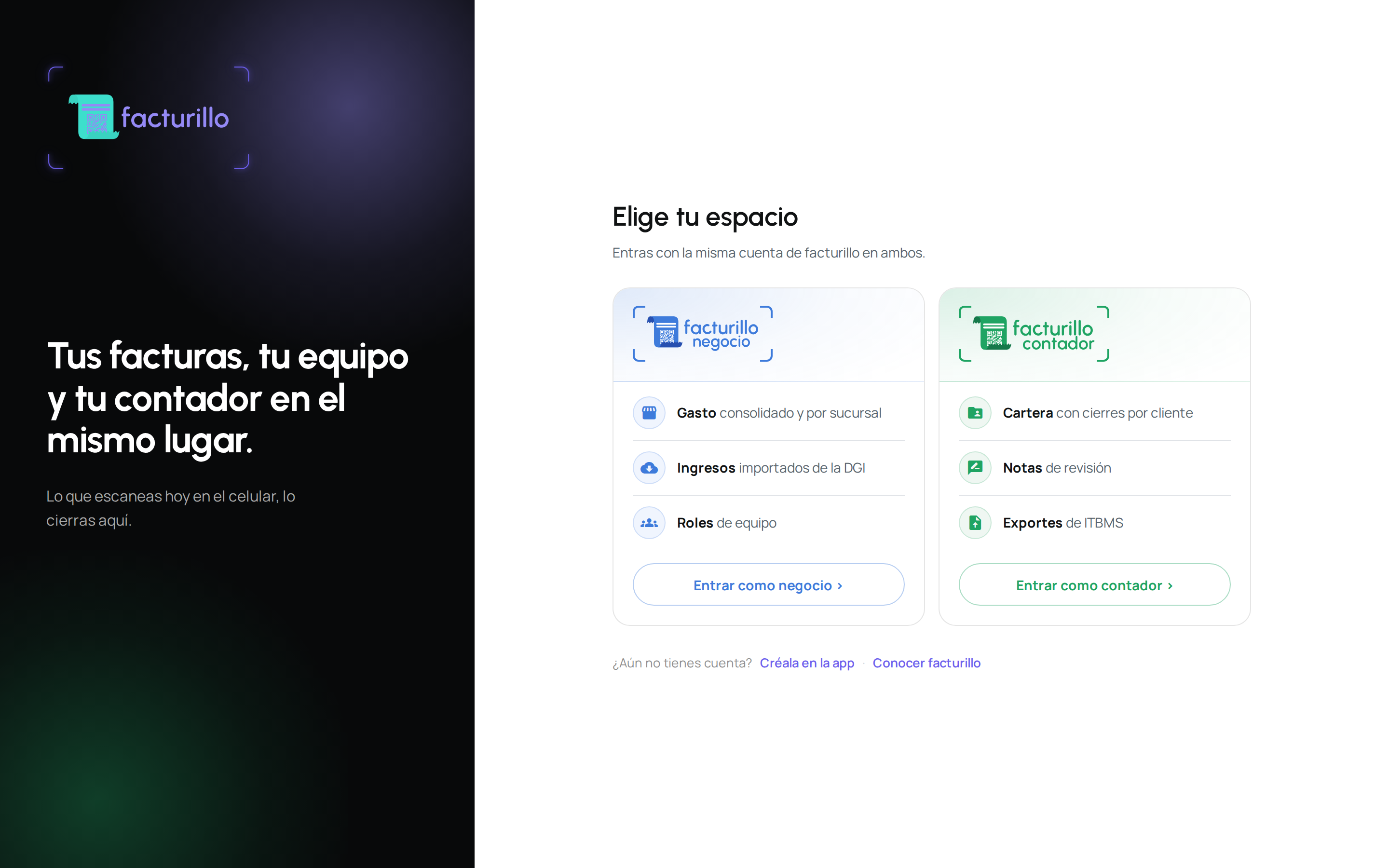
On Elige tu espacio (choose your space), tap Entrar como negocio › (enter as a business) if you run a business, or Entrar como contador › (enter as an accountant) if you keep other businesses' books.
You sign in with the same facturillo account in both. The portal remembers your choice in that browser. If you picked the wrong one, tap Cambiar de espacio › (change space) above the code.
3. Sign in with your phone
The computer shows Entra con tu celular (sign in with your phone), with a QR code and three steps below it. Open facturillo on your phone.
Tap the app's QR scanner and point it at the code on the screen. The computer shows Código escaneado (code scanned) and asks you to confirm the access on your phone.
On the phone, check that the two-digit code matches the one on the computer and tap Aprobar (Approve).
The app says «Listo, vuelve a tu navegador» (done, go back to your browser). The computer shows Iniciando sesión… (signing in) and you are in.
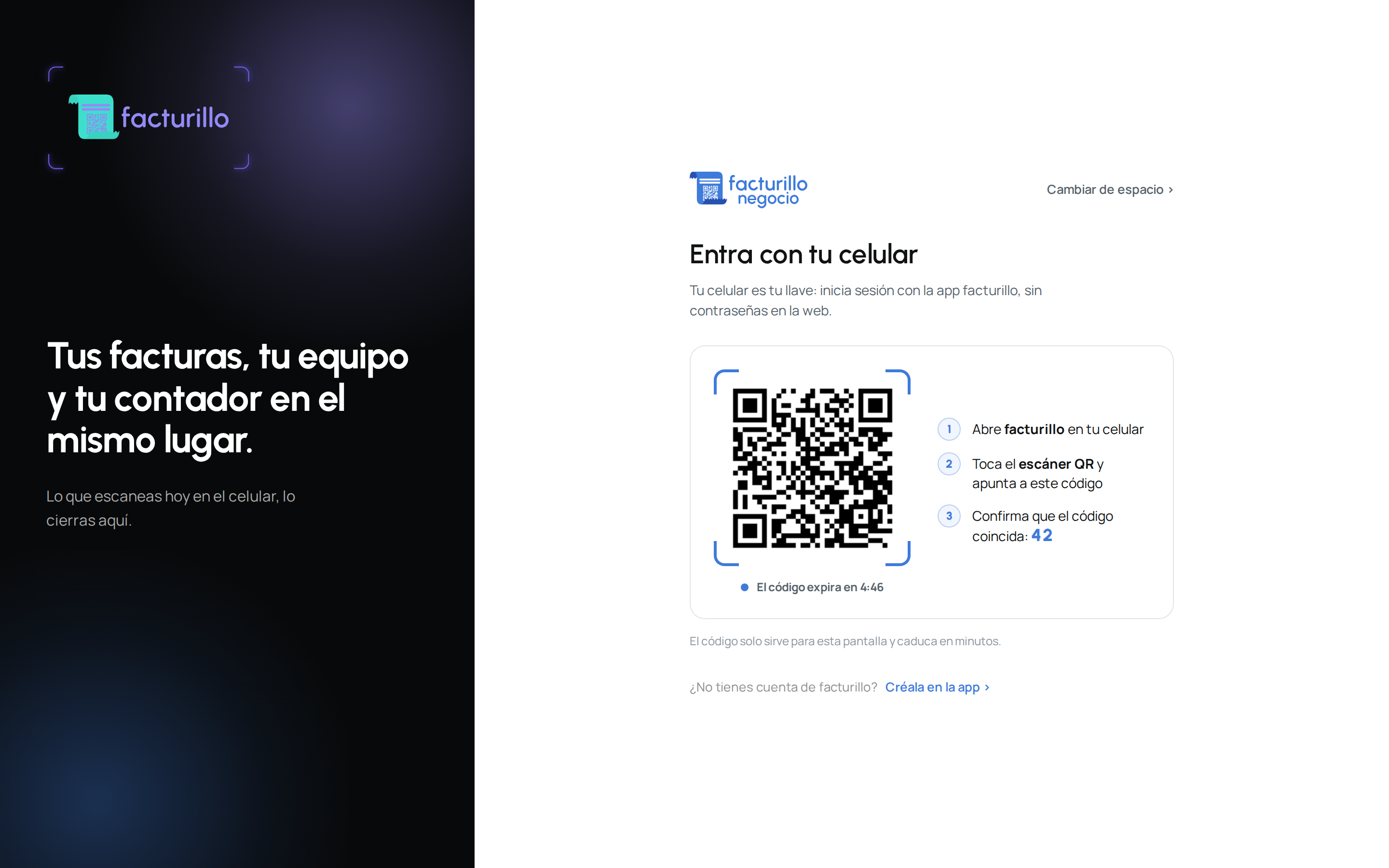
The code only works for that screen and expires in minutes: the countdown below the code tells you how long is left. If it runs out, tap Generar nuevo código (Generate a new code). If you open the portal on your phone, instead of the code you see Continuar con facturillo (Continue with facturillo), which opens the app so you confirm there.
If you do not recognize the connection the app shows or did not start it yourself, tap Rechazar (Reject) on the phone.
4. Enter your business or your firm
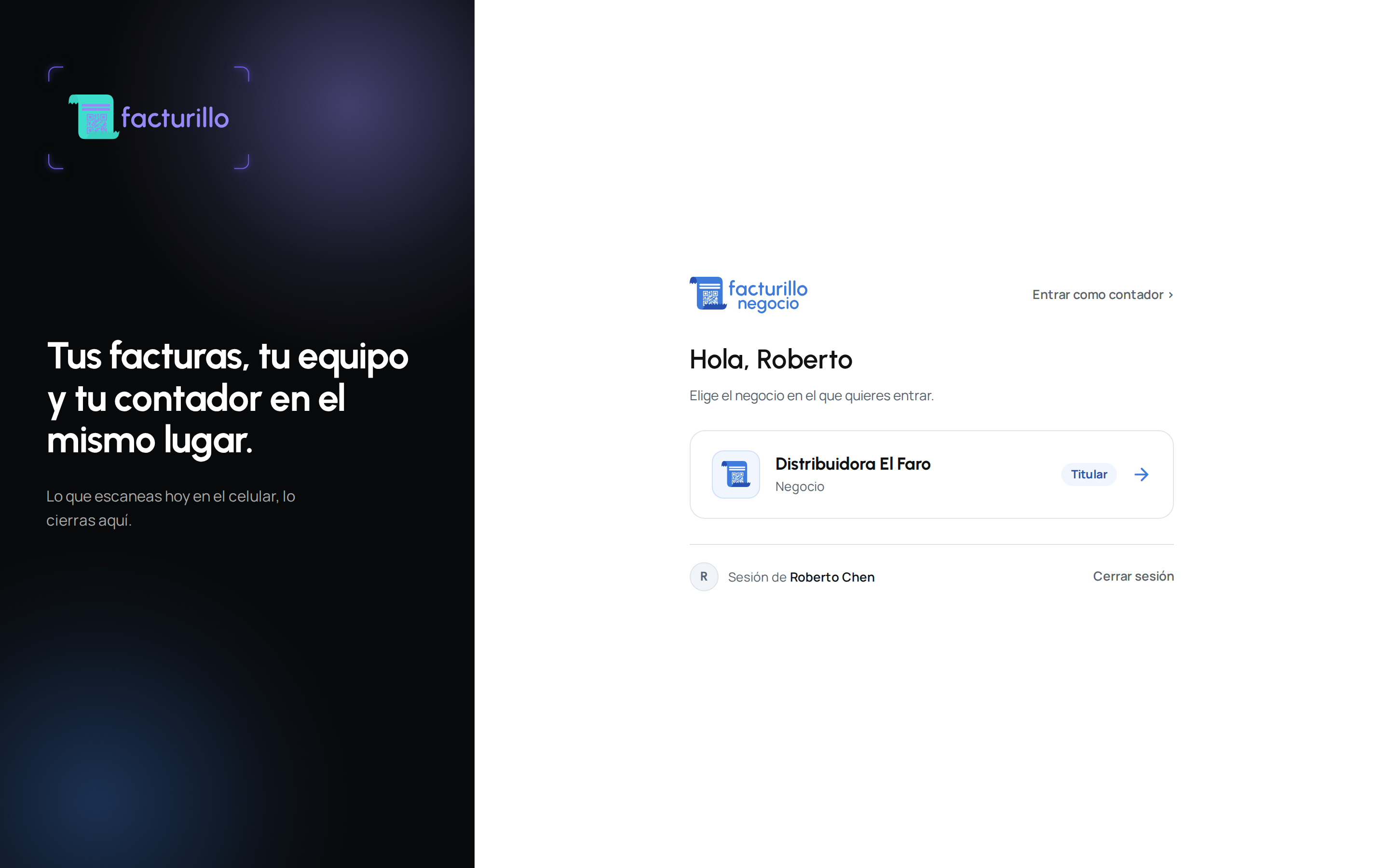
Once in, you see Hola (Hello) with your name and the list of that space's accounts:
- As a business, «Elige el negocio en el que quieres entrar.» (choose the business you want to enter). Tap your business's card, which shows your role. If you do not have one yet, tap Crear un negocio (Create a business).
- As an accountant, «Elige la firma con la que quieres trabajar.» (choose the firm you want to work with). Tap your firm's card, or Crear una firma de contadores (Create an accounting firm) if you do not have one yet.
- At the top you can move to the other space without signing out, with Entrar como contador › or Entrar como negocio ›.
If your account is a collaborator account, the portal tells you so: collaborators add their invoices from the app, and the portal is for the people who run the business.
Switch account or sign out
Inside the portal, tap your name at the bottom left. The menu has Cambiar de cuenta (Switch account: back to the list of your businesses or firms) and Cerrar sesión (Sign out), which first asks ¿Cerrar sesión? (sign out?): it signs out in that browser and your phone stays your key to come back. Versión anterior (Previous version) is there too, and opens the portal's previous design.
You can also end a session from your phone: in the app, open your profile and go to Privacidad › Sesiones del portal. There you see each browser with an open session and end it with «Cerrar sesión del portal».