
When you have no QR to scan (a receipt from a shop without electronic invoicing, an expense from another country, or a paper receipt), you can add the receipt by taking a photo or typing the details yourself. It is a two-step flow: first you attach the image, then you review the details and save.
Before you start
- Have a legible photo or PDF of the receipt handy, if you want the AI to fill in the details for you.
- You can also skip the photo and type everything by hand: attaching a file is not required.
Step by step
Open the scanner from the main screen and tap the Manual button in the bottom row. The Agregar manualmente screen opens.
Tap Adjuntar and choose a photo or a PDF of the receipt. If you would rather not attach anything and type it all yourself, tap Ingresar manualmente and skip to step 4.
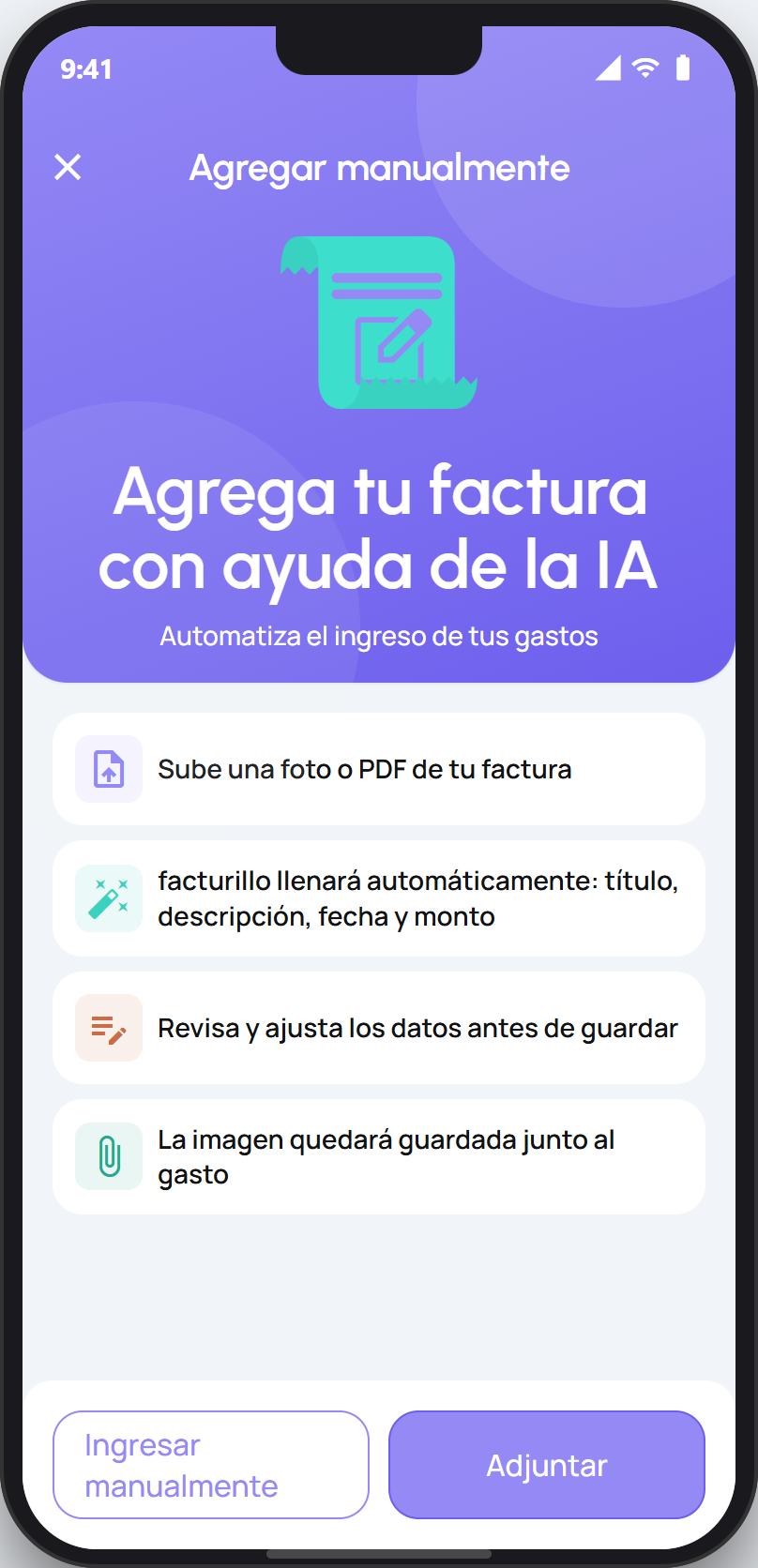
With the photo attached, tap Analizar con IA. facturillo reads the image and fills in the details for you. If the photo did not come out well, tap Seleccionar otro to pick another one.
Review and complete the details: TÍTULO (title), MONTO (amount), FECHA (date), CATEGORÍA (category), and whatever else you need. Adjust what is off and save. The receipt lands in your list.
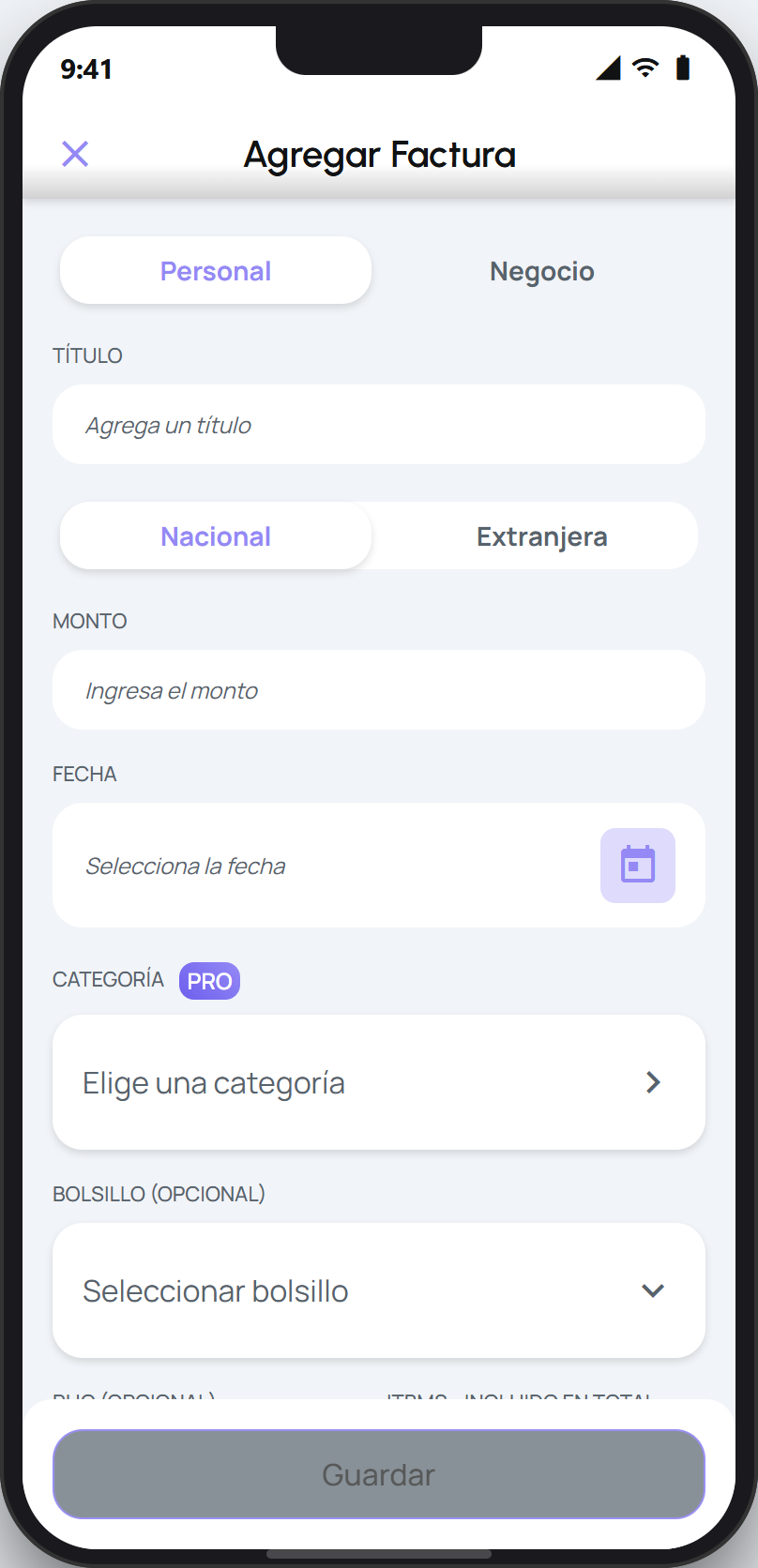
A receipt added by hand does not go through the DGI check, so its details are the ones you confirm. If the receipt does have a QR or a CUFE, scanning it or typing the CUFE is faster and pulls in the real details for you.