
If the receipt is already on your phone, there is no need to point the camera at it. From the same scanner you can upload the photo or the PDF, and facturillo reads the code from the file just like a normal scan.
Before you start
- Have the file ready: a photo or a PDF of the receipt.
- Accepted formats: jpg, jpeg, png and pdf.
- Uploading works on every plan, you do not need Pro.
Step by step
On the main screen, tap the scan button. At the bottom you will see three controls: Upload (Adjuntar if your app is in Spanish) on the left, the capture button in the center and Manual on the right.
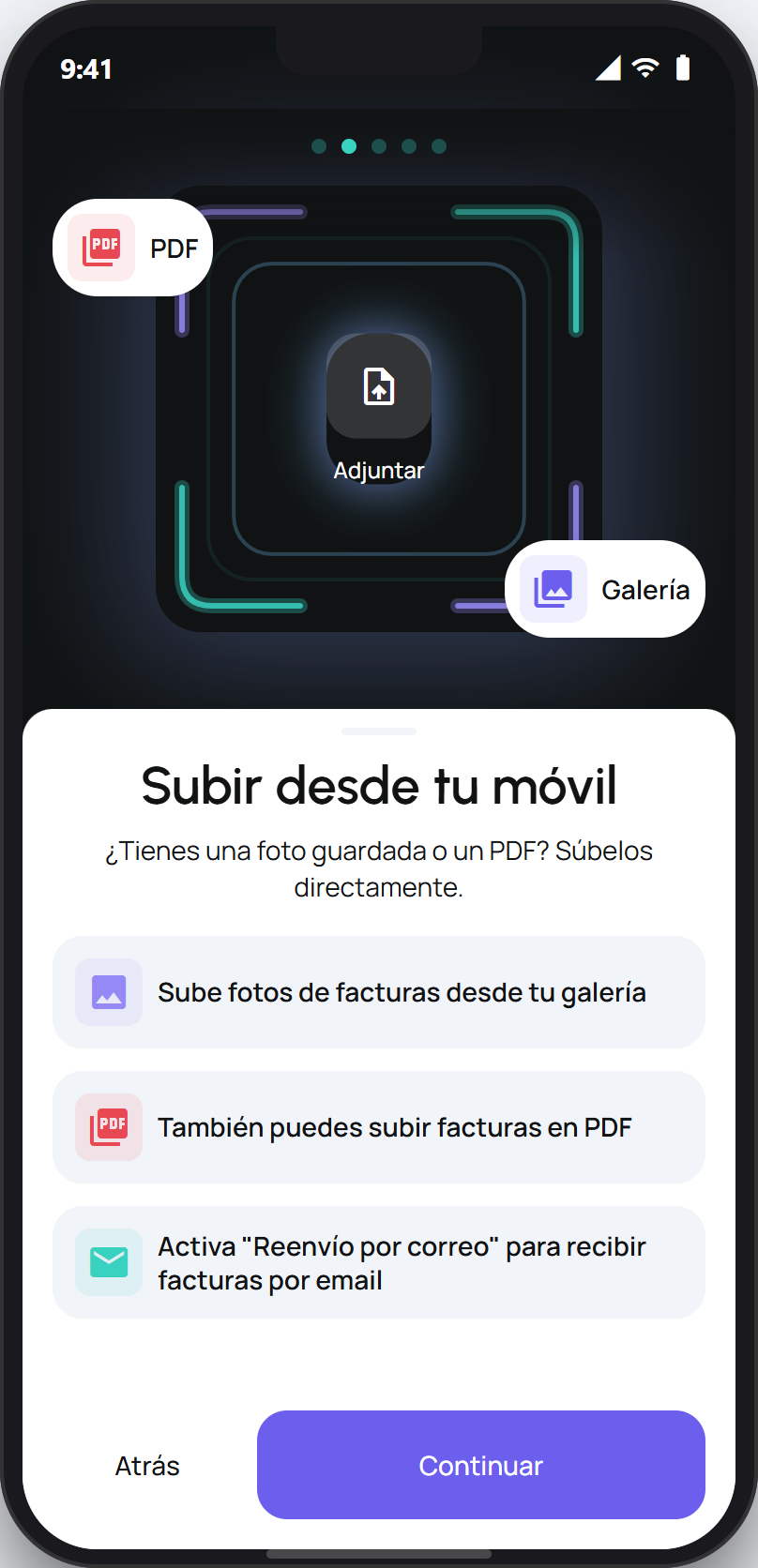
Tap Upload. An Options sheet opens with three sources: Camera, Gallery and PDF.
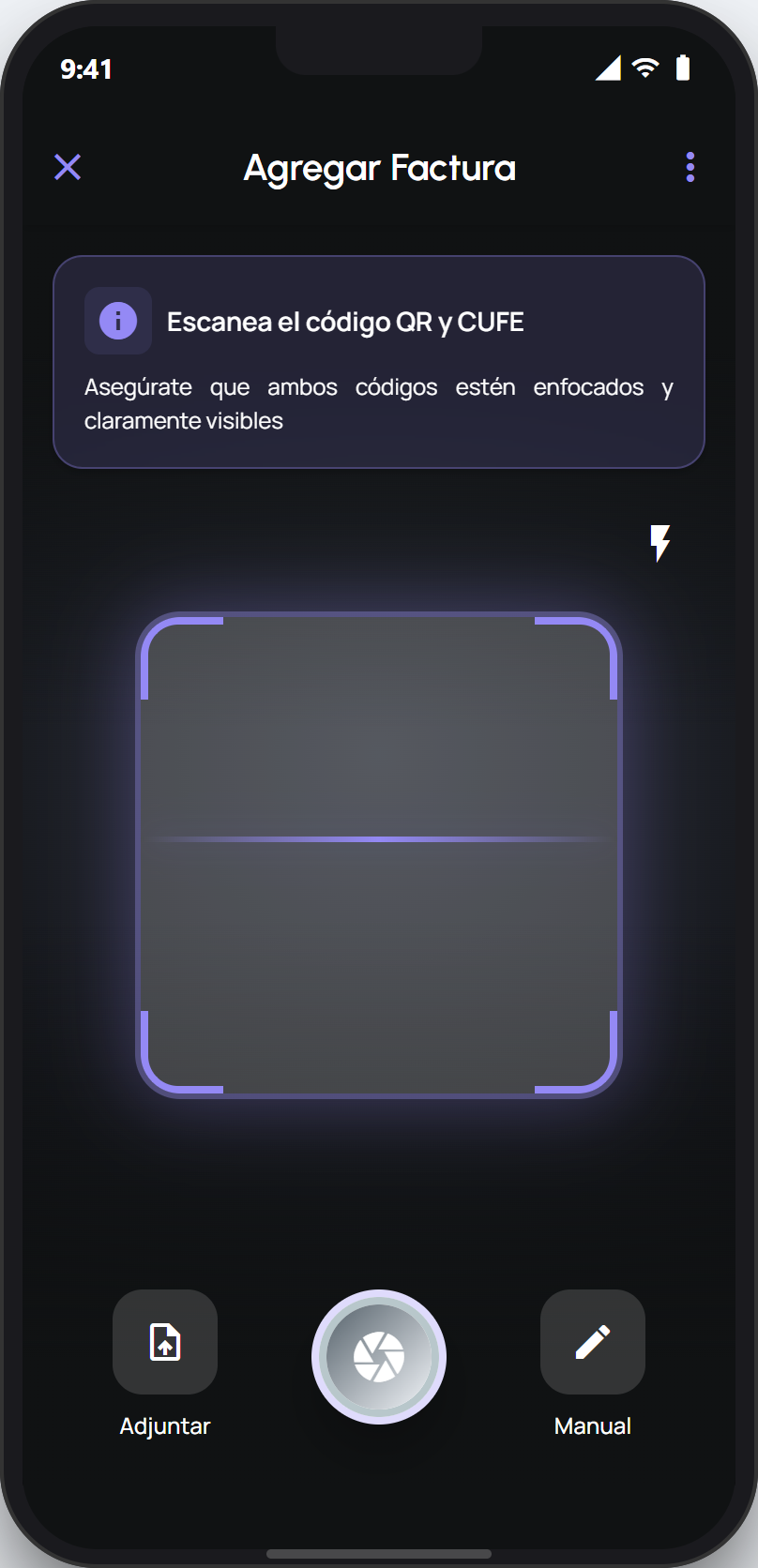
Choose where the file comes from. Camera takes the photo right now, Gallery uses a photo you already saved and PDF opens your files. With PDF you upload one file at a time.
facturillo opens the file and looks for the code. If it finds the QR or the CUFE, everything continues like a normal scan: the details are confirmed with the DGI and the receipt lands in your list.
If the file has no readable code
Nothing is lost. facturillo still sends it so we can review it for you. That review can take up to 24 hours and we let you know when it is ready.
Which route suits you
The file is already on your phone: upload it with Upload, exactly as above.
The receipt arrives by email: turn on email forwarding and receipts come in on their own, without opening the app.
The receipt has no QR or CUFE: add it by hand, with a photo or by typing the details.