
facturillo's scanner is built for Panama electronic invoices: the ones that carry a QR and a CUFE that the DGI can confirm. If you point the camera at another kind of code, facturillo reads it but tells you it is not an invoice, with a message like «This QR code is not a Panama electronic invoice (DGI)».
Which invoices you can scan
You can scan Panama electronic invoices: the ones that come with a QR and a CUFE (Unique Electronic Invoice Code) printed on them, almost always together. When you scan that code, facturillo looks the invoice up at the DGI and brings in its real data.
What cannot be scanned
Many codes are not electronic invoices, so they are not added when you scan them:
- The barcode of a product or an item number.
- A payment QR (for example to pay with your phone) or a promotional QR.
- A QR that only opens a link or a web page.
- An invoice from another country: DGI verification is only for Panama invoices.
- A receipt without electronic invoicing, from a merchant that does not issue a CUFE.
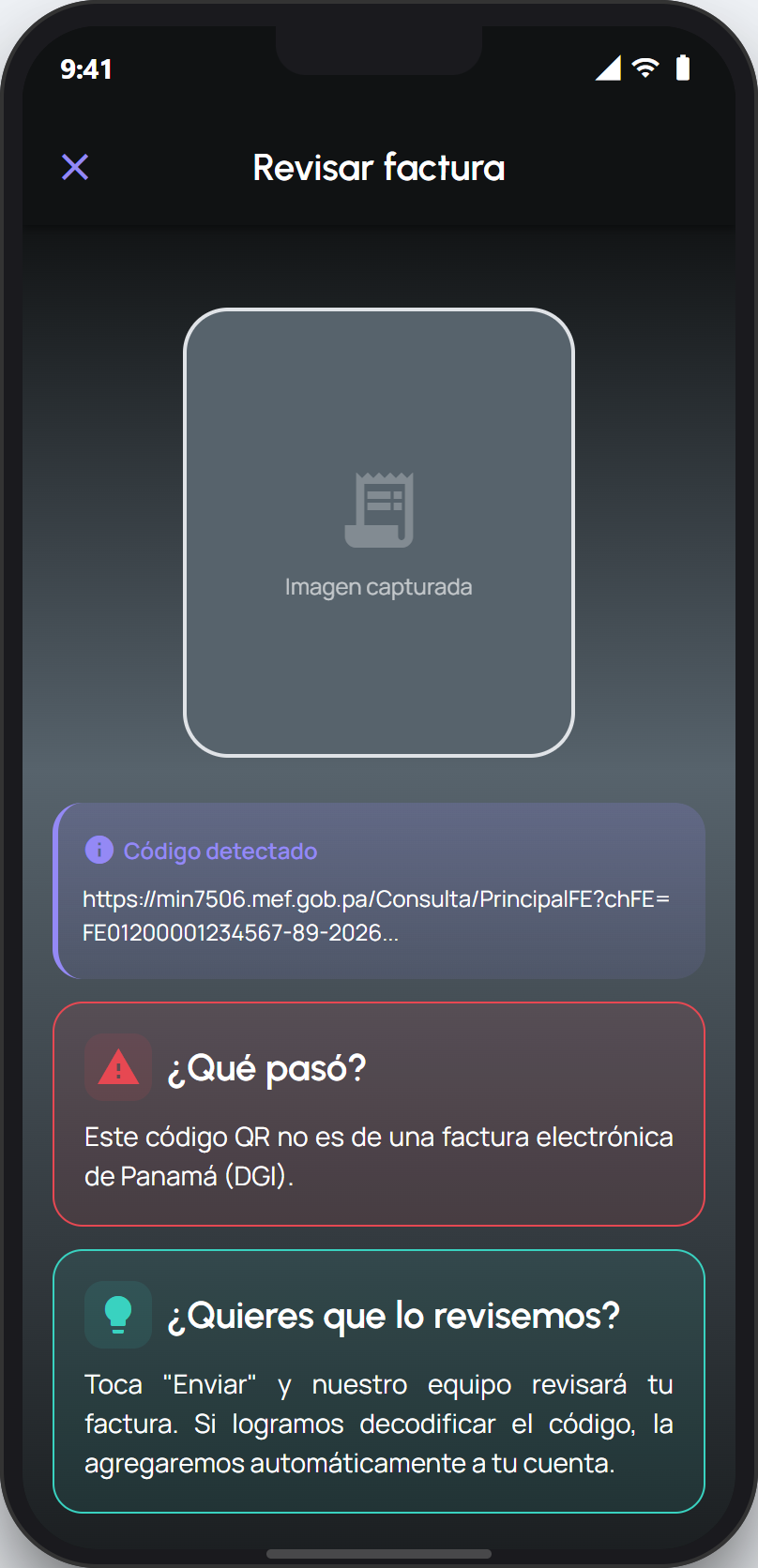
What you can do
Confirm you are scanning the QR of a Panama electronic invoice, not a product barcode or another code. The invoice's QR usually sits next to the CUFE.
If the merchant has no electronic invoicing and its receipt carries no CUFE, you can add the invoice by hand, with a photo or by typing the details.
If it is an invoice from another country, add it as a foreign expense from the manual entry option.
Tip
You recognize an electronic invoice because, near the QR, the CUFE is printed: a long row of numbers and letters. If the paper has no such code, that invoice cannot be scanned, but you can still add it by hand.
Scanning is always the fastest route when the invoice is electronic, because it brings in the real data for you. When there is no invoice code to scan, manual entry lets you record the expense all the same.