
Sometimes the invoice's QR comes out cut off, split, or half printed, and the camera cannot read it whole. When that happens, facturillo cannot pull the CUFE out of the code and tells you it could not be read. You do not lose the invoice: it almost always resolves by retrying or typing the CUFE by hand.
Why it happens
A QR reads correctly only when it is complete. If the paper cut it off at the edge, split it in two, left a blank band across it, or printed it with faint ink, the code is missing pieces and the camera cannot rebuild it. This is a problem with how the invoice was printed, not with your phone.
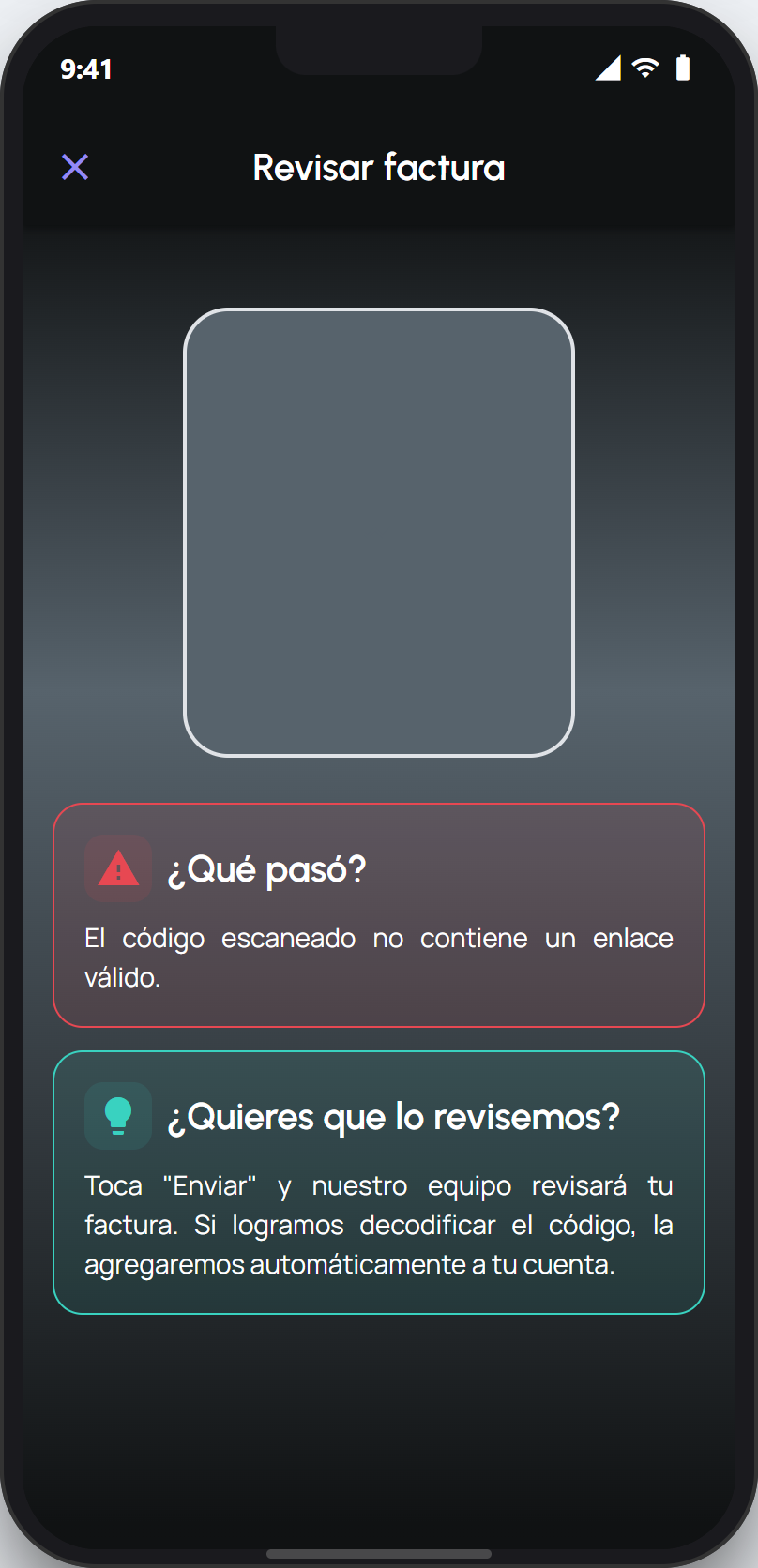
What you can do
Try again with the whole QR inside the frame, the invoice flat, and good light. If the paper is folded over the code, smooth it out before scanning.
If the QR is physically cut off or damaged on the paper, it will not scan no matter how many times you try. In that case, type the CUFE by hand: it is the long code of numbers and letters printed next to the QR.
If the CUFE was also cut off and you cannot read it whole, keep the paper invoice and try again in better light, or contact us.
Tip
When the QR will not read, the printed CUFE is your best alternative. Even if the QR is cut off, the CUFE is often complete a few lines below, and typing it adds the invoice just as if you had scanned it.
A cut-off QR is one of the most common causes of a failed scan, and it almost always resolves with manual CUFE entry. If the code came out completely unreadable, keep the paper: with better light or a clearer copy you will be able to try again.