
Some merchants' receipts are harder to scan than others. It tends to happen with certain supermarkets, gas stations, and fast-food restaurants that print the QR small, faint, or on paper that fades quickly. It is not a problem with your phone or the app: it is how that receipt was printed. The good news is there is always a way through.
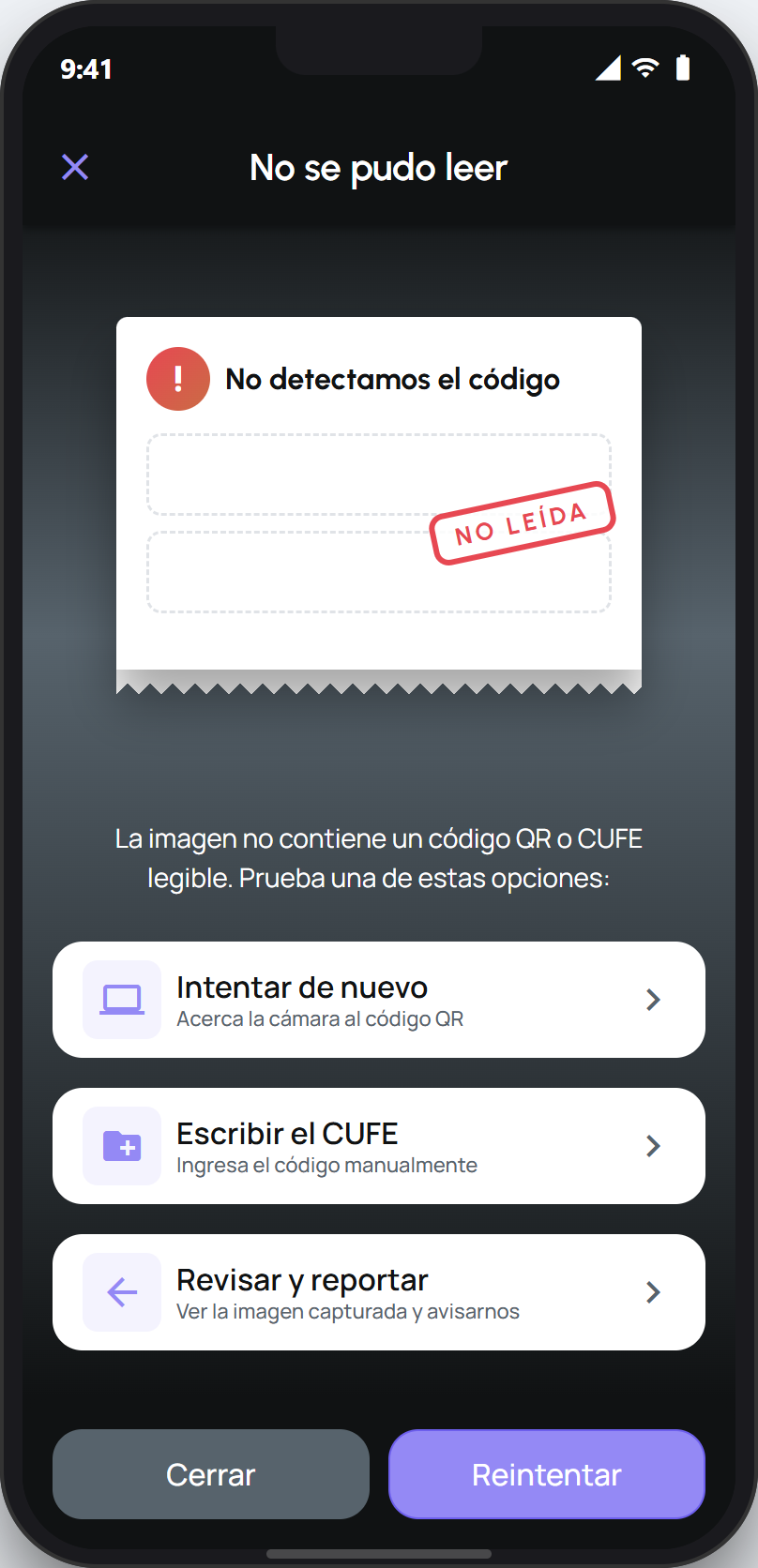
What to do when a merchant will not scan
Try once more with good light, a steady phone, and the code well framed. A faint QR sometimes catches under better conditions.
If it still will not read, tap Type the CUFE on the «could not read» screen and type the code printed on the receipt. facturillo processes it just like a scanned receipt. This is the most reliable route with these merchants.
If the paper will not let you read even the CUFE, tap Review and report. That report helps us improve how we read that merchant's receipts.
Tip
The thermal paper on many receipts fades with heat and time. Scan or save the CUFE soon after the purchase, before the code disappears.
Typing the CUFE by hand gives exactly the same result as scanning: the receipt keeps its real details confirmed by the DGI. So no merchant leaves you unable to save their receipt.